Preparing a 300-question mock test involves more than writing questions and creating an answer key. You also need an answer sheet that gives students enough space to record every response without losing track of question numbers.
A simple five-option answer sheet can make that process easier. Students can mark A, B, C, D, or E for each question, while teachers can collect responses in a consistent format for checking and review.
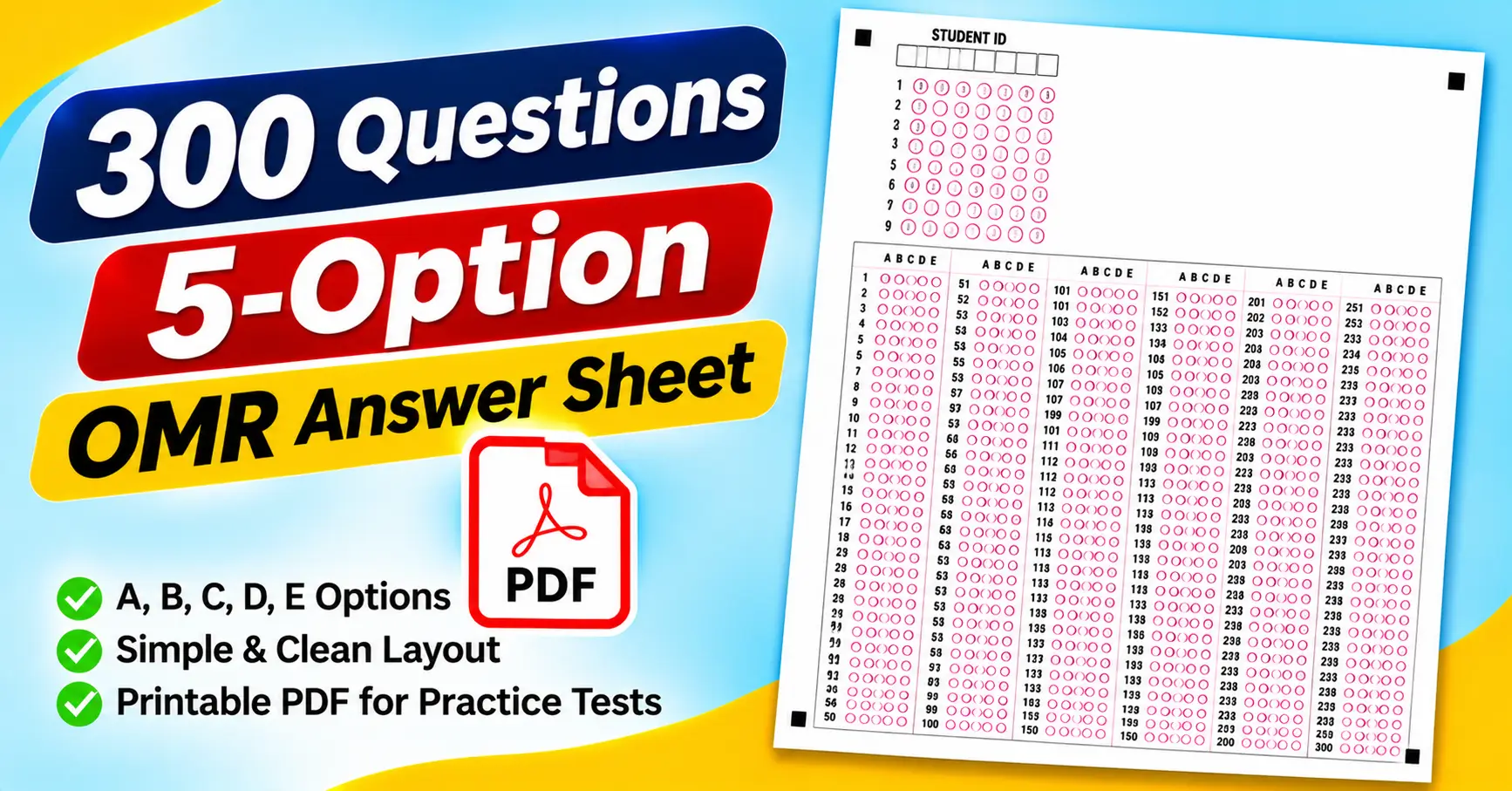
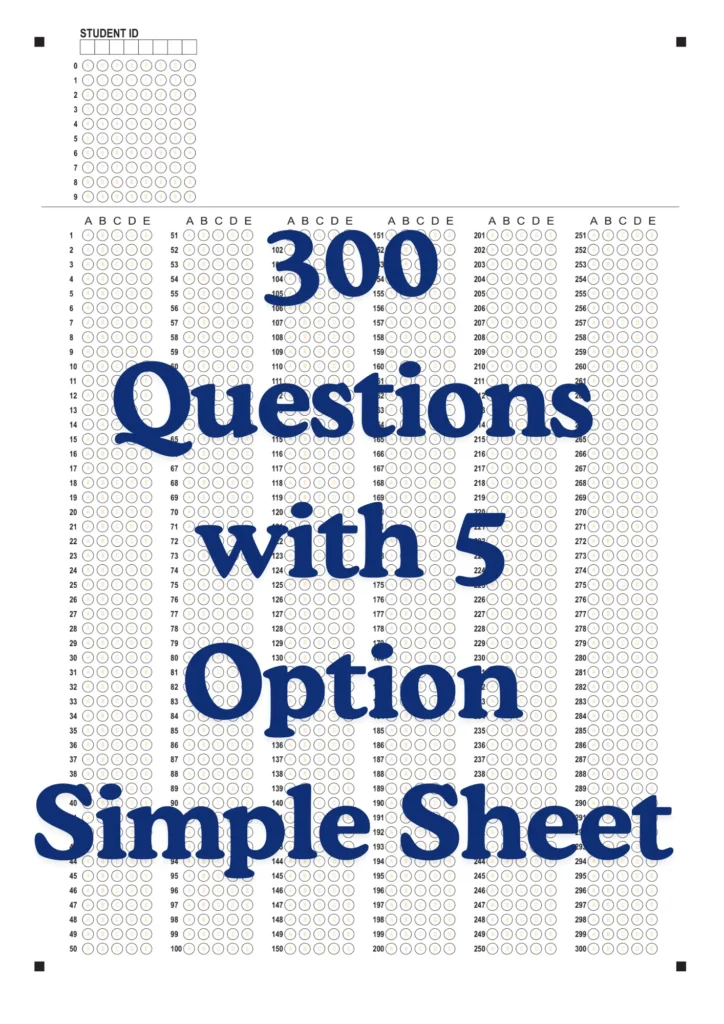
The 300 Questions with 5-Option Simple OMR Sheet PDF is designed for this type of practice. The attached PDF contains 300 numbered questions, five answer bubbles per question, and a student ID section. Its layout arranges the questions into six vertical blocks, making a long answer sheet easier to navigate.
In this guide, we will review the attached sheet’s layout, explain how to print and use it, and discuss how to check responses without introducing avoidable errors.
What Is a 300-Question,5-Option Simple Sheet?
A 300-question, five-option answer sheet is a printed form for recording responses to 300 multiple-choice questions. Each question has five possible answers, usually labeled A, B, C, D, and E.
Instead of writing the full answer, students mark the corresponding bubble on the sheet. For example, if the answer to Question 24 is D, the student fills the fourth bubble in the row numbered 24.
The attached file uses this format across all 300 questions. It is a straightforward design intended to provide a consistent response area without adding unnecessary examination details.
The PDF format is convenient because you can open it in Adobe Acrobat Reader, a browser’s PDF viewer, or another compatible application. You can print copies for practice tests, revision sessions, and classroom assessments.
One important distinction: a simple printable answer sheet is not automatically compatible with every automated OMR scanner or checking application. If you plan to scan the sheets, confirm that your software supports this layout.
What Is Included in the Attached PDF?
The supplied PDF is a single-page, portrait-oriented answer sheet. Its design uses a white background, black text, outlined bubbles, and clear question numbering.
The following features are visible in the attached page.
1. Student ID section
At the top of the sheet, a field labeled STUDENT ID has individual boxes for entering the identification number.
Below the boxes, a digit grid contains rows numbered 0 through 9. Students can use this grid to record their ID by marking the appropriate digit in each position.
For example, if a student’s ID begins with 3, the student marks the bubble labeled 3 in the first position, following the form’s instructions.
Check the ID carefully before submitting the sheet. Incorrect identification details can make it difficult to match a response sheet to the correct student.
2. Five answer options per question
Every question has five response bubbles arranged under the labels A, B, C, D, and E.
This is the defining feature of the attached template. It is a question paper that uses five answer options for each multiple-choice question.
If your test uses only four options, you can still use the sheet if the organizer permits it, but you should decide how to handle the unused fifth option. For a consistent testing experience, matching the answer sheet to the question paper is preferable.
3. Questions numbered from 1 to 300
The answer section includes every question number from 1 through 300.
Rather than presenting all questions in one long column, the sheet divides them into six vertical blocks:
- Questions 1–50
- Questions 51–100
- Questions 101–150
- Questions 151–200
- Questions 201–250
- Questions 251–300
Each block contains 50 questions. This arrangement makes it easier to locate a response row and check which part of the test has been completed.
4. A simple layout without extra examination fields
The attached sheet focuses on the student ID and answer bubbles. It does not show the extensive booklet-series, subject, or signature sections found on some other OMR templates.
That simplicity can be useful when you want a general-purpose practice sheet rather than a form designed for a particular examination authority.
If your test requires additional information, such as a booklet code or examination date, you may need to record it separately or use a template that includes those fields.
5. Registration marks at the page edges
The PDF includes small black square marks near the page corners.
These are part of the supplied design and may matter for positioning when you use a compatible scanning system. Avoid cropping or modifying them if automated processing is planned.
Their presence alone does not guarantee compatibility with any particular OMR scanner.
Who Can Use a 300-Question, Five-Option Answer Sheet?
This type of sheet can be useful whenever a test contains a large number of multiple-choice questions with five answer choices.
Students preparing for competitive examinations
Students can use the sheet during full-length mock tests to practice recording answers separately from the question paper.
This is useful for building a routine: identify the question number, choose an answer, fill the matching bubble, and check the row before moving on.
A 300-question practice session can also reveal whether a student loses time while transferring answers or makes repeated mistakes when moving between sections.
Teachers conducting mock examinations
Teachers can print identical copies for students taking the same test. The consistent layout makes it easier to collect responses and compare performance against an answer key.
For example, a teacher preparing a 300-question general knowledge assessment can use the sheet to record each student’s responses in a standard format.
Coaching institutes
Coaching centers can use the sheet for long practice tests, revision exercises, and progress assessments.
Students can practice filling five-option answer bubbles and managing a large number of responses under time pressure.
Schools and colleges
Educational institutions may use a simple answer sheet for internal assessments and objective tests. Before using it, check that the question count and answer options match the assessment.
Tutors and individual learners
Private tutors can use the sheet to conduct diagnostic tests, while individual learners can print it for self-assessment.
For repeated practice, recording the test date and score separately helps students compare results over time.
How to Print the 300 Questions with 5-Option Simple Sheet PDF
A long answer sheet needs to remain readable after printing. If the bubbles become too small or the question numbers are clipped, students may struggle to record their answers accurately.
Follow these steps before printing a complete batch.
Step 1: Open the PDF
Open the attached file in Adobe Acrobat Reader or another compatible PDF viewer.
Check that the student ID section, all six question blocks, and Question 300 are visible. The attached sheet is designed as a single-page form, so make sure the entire layout appears in the print preview.
Step 2: Select the appropriate paper size
Choose a paper size that matches the PDF’s original dimensions and your printer. A4 paper is commonly used in India, but check the original document settings rather than assuming the page size.
Avoid stretching the sheet to fit a different paper format. Changing the proportions may affect the spacing between answer bubbles.
Step 3: Check the scaling settings
Look for print options such as “Actual Size” and “Fit.”
Choose the setting that preserves the layout and keeps the entire form within the printable area. Check that the student ID grid and all six response blocks remain visible.
Step 4: Select suitable print quality
For manual practice, a clear black-and-white print is generally suitable.
If you intend to use an OMR scanner, follow the scanning system’s specifications for print quality, contrast, paper dimensions, and alignment. A form that works well for manual checking may not work with every automated evaluation system.
Step 5: Print one test copy
Before printing 30 or 100 copies, print a single sheet.
Check that:
- All question numbers from 1 to 300 are present.
- Each question has five clearly visible bubbles.
- The A, B, C, D, and E labels are readable.
- The student ID grid is easy to understand.
- The page edges and registration marks are not cut off.
Once the sample looks correct, print the required number of copies.
How to Fill the Five-Option Answer Sheet Correctly
A 300-question test can become confusing if students rush through the answer sheet. A consistent marking routine helps prevent errors.
Step 1: Enter the student ID
Start by recording the required student ID in the boxes at the top of the sheet.
Then mark the corresponding digits in the grid, following the form’s instructions. Double-check the identification number before beginning the test.
Step 2: Understand the five-option format
Each question provides five choices: A, B, C, D, and E.
If the correct answer to Question 15 is B, fill the second bubble in the row numbered 15. If Question 16 has answer E, fill the fifth bubble in its row.
The key is to match the selected option to the correct question number.
Step 3: Work through the question blocks
The attached sheet divides 300 questions into six blocks of 50.
Use these blocks as checkpoints. After completing Questions 1–50, confirm that your answers are recorded in the correct rows before moving to Questions 51–100.
You don’t need to stop after every question, but checking at sensible intervals can help you catch mistakes early.
Step 4: Handle unanswered questions carefully
If you are unsure about an answer, follow the test’s instructions for leaving it blank or returning to it later.
Avoid marking a random bubble just to complete the row. If negative marking applies, an incorrect answer may affect your score.
When returning to an unanswered question, verify its number before filling the selected bubble.
Step 5: Correct mistakes according to the rules
If you mark the wrong option, follow the correction procedure specified by the test organizer.
Do not assume that erasing or overwriting a response will be acceptable. Some automated systems may interpret remaining marks as an ambiguous answer.
Step 6: Review the completed sheet
Before submitting the answer sheet, check your student ID and review the question blocks.
Look for accidental marks, missed responses, and answers entered in the wrong rows. Make sure the last block includes your responses through Question 300.
How to Check 300 Answers Efficiently
After the test, you can evaluate responses manually, use a spreadsheet, or use compatible OMR software.
Method 1: Manual answer checking
For a small group, prepare an answer key and compare each student’s responses against it.
Record the correct, incorrect, and unanswered questions. Then calculate the score using the test’s marking rules.
For example, suppose a student answers 240 questions correctly out of 300. The percentage of questions answered correctly is:
This represents the percentage of correct answers. If the test uses negative marking, calculate the final score according to the specified rules.
Method 2: Use Google Sheets or Microsoft Excel
A spreadsheet can make score calculation easier when several students take the same test.
Create a table containing the student ID, selected answers, correct answers, and results. Keep the answer key separate so you can check and update it without changing student responses.
For example, if a student’s answer is in cell B2 and the correct answer is in C2, you can use this formula:
=IF(B2=C2,1,0)
The formula returns 1 when the answers match and 0 when they do not. For a complete test, extend the comparison across all 300 questions and account for blank answers according to your scoring rules.
Test the formula using a few manually checked responses before calculating results for an entire class.
Method 3: Automated OMR evaluation
If you regularly process large numbers of answer sheets, compatible OMR software may help automate response recognition and scoring.
However, the attached PDF’s simple layout and corner marks do not guarantee compatibility with every scanning application. Confirm that the software supports the template or allows you to configure it correctly.
Before using automated results for a formal assessment, test sample sheets with different answers, blank responses, and corrected marks.
Common Mistakes to Avoid
Even a simple answer sheet can create problems if students or organizers overlook a few details.
1. Marking the wrong question number: Skipping a question can cause students to record later answers in the wrong rows. Check the printed number before marking each response.
2. Entering the wrong student ID: An incorrect identification number can make it difficult to associate a sheet with the correct student. Verify the ID before starting.
3. Using the wrong option format: The attached sheet has five options per question. If the question paper uses a different number of options, ensure the marking instructions explain how to use the sheet.
4. Printing at the wrong scale: A stretched or reduced printout may make the bubbles difficult to fill. Check the page dimensions and print preview.
5. Making unnecessary marks: Keep the answer area clean, especially if the sheet will be scanned.
6. Assuming the PDF checks answers automatically: The attached file is a response sheet, not an evaluation program. You need an answer key and an appropriate checking method.
7. Ignoring blank responses: When calculating scores, distinguish unanswered questions from incorrect answers if the examination’s marking rules require it.
Frequently Asked Questions
1. How many questions are included in this PDF?
The attached PDF contains 300 numbered questions, from 1 to 300, arranged in six blocks of 50 questions each.
2. How many options does each question have?
Each question has five answer bubbles labeled A, B, C, D, and E.
3. Can I print the answer sheet at home?
Yes. Open the PDF in a compatible viewer, check the paper size and scaling, and print a sample copy before producing additional sheets.
4. Can I use the sheet for a 100-question test?
For informal practice, you can use the first 100 response rows if the test organizer permits it. A dedicated 100-question sheet may be easier to use.
5. Does the sheet include a student ID section?
Yes. The attached template contains a student ID field and a digit-bubbling grid at the top of the page.
6. Can I use the sheet for five-option competitive exam practice?
Yes, for practice tests with five answer choices. For official examinations, use the answer sheet required by the examination authority.
7. Can I calculate marks using Google Sheets?
Yes. You can compare student responses with an answer key using spreadsheet formulas. Make sure the formulas account for unanswered questions and any negative-marking rules.
8. Is the sheet compatible with every OMR scanner?
No. Compatibility depends on the form layout, scanner, software, print quality, and configuration. Test the sheet with your intended system before relying on automated evaluation.
Final Thoughts
The 300 Questions with 5-Option Simple Sheet PDF is a practical resource for long mock tests, multiple-choice assessments, and exam preparation. Its straightforward layout includes a student ID grid and 300 numbered questions, each with five answer options.
The six-block arrangement makes the sheet easier to navigate, while the simple design avoids unnecessary fields that may not be needed for practice tests.
Before printing, check the page settings and verify that every question has five clearly visible options. Explain the marking process to students, and confirm compatibility if you plan to use automated evaluation.
A well-prepared answer sheet helps students focus on solving questions and gives teachers a consistent way to organize responses.